
How to turn your LinkedIn profile into a resume (3 ways)
By the Presr team · · Updated
Your LinkedIn profile already holds most of a resume: your roles, dates, education and skills. Turning it into a document you can send to an employer takes a few steps at most, and one of the ways below takes about a minute.
The short version.
- Fastest: LinkedIn’s own Save to PDF. One click, but the layout is LinkedIn’s and you can’t edit it.
- Most control: copy the profile into a resume template yourself. Slow, but every word is yours to change.
- Both: a LinkedIn to resume tool that reads the profile into an editable template, like Presr.
1. Use LinkedIn’s Save to PDF
On a computer, open your own profile, click More under your name (on some layouts it’s called Resources), and choose Save to PDF. LinkedIn downloads your profile as a PDF.
It’s the quickest way to get something on paper (there’s more on it in how to download your resume from LinkedIn). The catch is that the file is your profile, not a resume: it uses LinkedIn’s layout, it includes every section in the order LinkedIn shows them, and you can’t change the design or the wording without retyping it somewhere else. It works as a record of your profile. It’s rarely what you want to send with an application.
2. Copy your profile into a resume template
The manual route gives you the most control:
- Open a resume template in a word processor, one with plain headings and a single column.
- Copy your headline and contact details into the top.
- For each role in Experience, copy the title, employer, dates and location, then rewrite the description as short bullets.
- Copy Education, then pick the skills and certifications that matter for the jobs you’re applying to.
It works, and nothing is out of your hands. It’s also slow: expect to spend most of your time on formatting, lining up dates and fixing spacing, rather than on the words.
3. Use a LinkedIn to resume tool
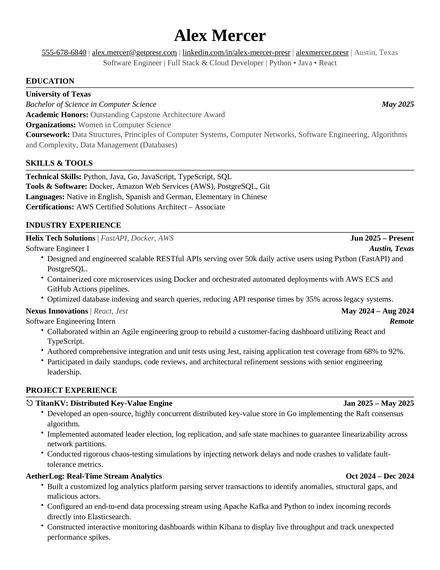
A converter reads your profile and lays it out as a resume you can edit. Presr is one, built as a Chrome extension. Here’s how it works:
- Open your LinkedIn profile, then open Presr in Chrome’s side panel.
- Scroll down your profile. Presr reads each section as it comes into view: experience, education, skills, projects, certifications and the rest.
- Press Build resume. Your profile opens as a resume you can edit, in any of 11 templates.
- Download it as a PDF or a Word file.
Presr never scrolls, types or posts anything on LinkedIn; it reads what your browser already shows because you scrolled to it. Your resumes stay in your browser, not on a server. The free plan needs no account and includes 1 download.
What to change once it’s a resume
Whichever way you convert it, a LinkedIn profile and a resume do different jobs. A profile describes your whole career to anyone who looks; a resume argues for one job. Before you send it:
- Cut to what the job needs. Early or unrelated roles can shrink to one line or go.
- Turn descriptions into bullets. Start each with a verb and end with what changed because of your work.
- Match the posting’s words. If the job asks for “stakeholder management” and you did it, say it that way. There’s more on that in how to tailor your resume to a job description.
- Check dates and titles. They should match your profile exactly; recruiters often look at both.
- Keep the layout simple. One column, standard headings and no text in images make a resume easier for applicant tracking systems to read.
Should you put your LinkedIn on your resume?
Usually, yes. It gives a recruiter a second place to check your history, and many will look anyway. Two things make it work:
- Use a short, custom URL. LinkedIn lets you edit your public profile URL, so it can read linkedin.com/in/yourname instead of a string of numbers.
- Put it in the contact line, next to your email and phone number, and keep the profile consistent with the resume you send.
Questions about turning LinkedIn into a resume
Can I build a resume from my LinkedIn profile for free?
Yes. LinkedIn’s Save to PDF is free, and so is copying the profile into a template by hand. Presr’s free plan builds an editable resume from your own profile, with every template and 1 download, PDF or Word, and no account.
Is LinkedIn’s Save to PDF a resume?
Not really. It’s a printout of your profile in LinkedIn’s layout, with every section in LinkedIn’s order, and you can’t change the design or the wording. It works as a record of your profile; a resume you send should be cut and worded for the job.
Should I put my LinkedIn URL on my resume?
Usually, yes. Edit your public profile URL so it reads linkedin.com/in/yourname, put it in the contact line next to your email and phone number, and keep the profile consistent with the resume you send.
Once it’s a resume, tailor it to the job description, and when your resume is newer than your profile, carry it back onto LinkedIn.
Turn your profile into a resume with Presr. Free to start, no account needed.
Add to Chrome